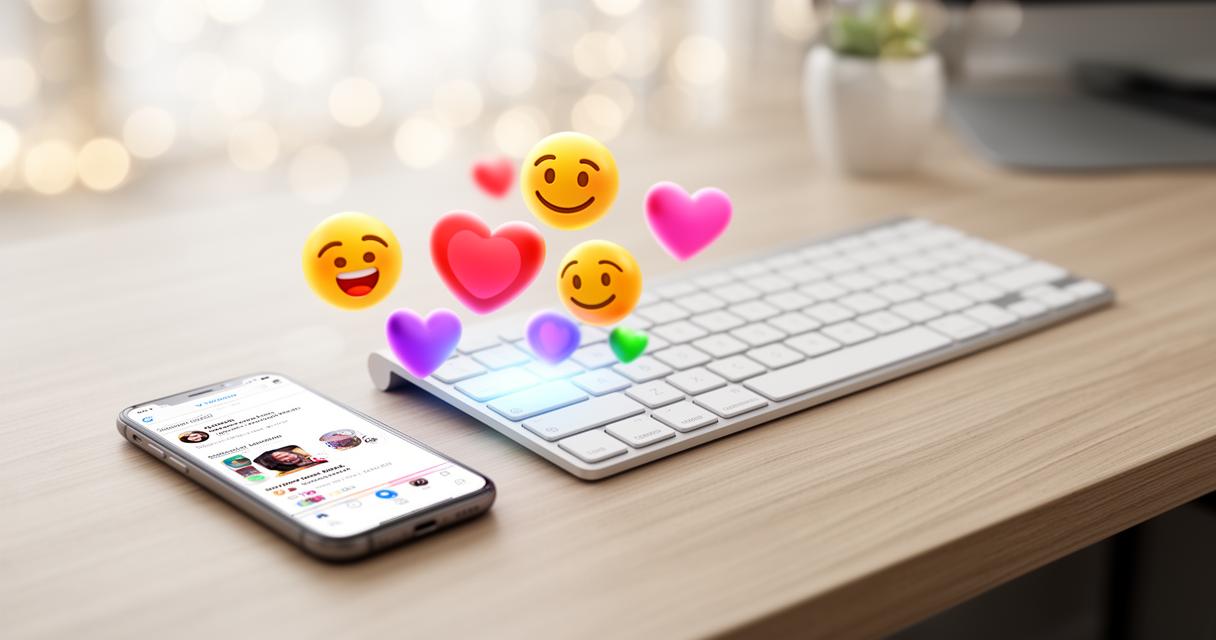
Anyone who has swapped an iPhone for a Samsung will know the frustration of sending a message full of expressive little icons, only to have them turn up looking completely different on a friend's screen. That mismatch between how emojis appear on iOS and Android is more common than you might think, and thankfully there are some clever workarounds that let you enjoy that familiar Apple style without ever touching an actual iPhone.
In brief
- Emojis appear differently across devices because manufacturers render unique graphics based on a shared Unicode standard.
- Many Android users prefer Apple's emoji design for its consistent, polished aesthetic and widespread cultural recognition.
- Samsung and HTC users can install iPhone-style emojis without rooting their phones by using the FlipFont application system.
- Since the Emoji Fonts for FlipFont app has been removed from the Google Play Store, users must sideload the APK file from a trusted source.
- Users must select the correct version of the app based on their Android version, with version 5 required for Android 6.0 and later.
- The process involves enabling installations from unknown sources in security settings and selecting the new font within the device's display or font menu.
- System theme changes may occasionally reset the font settings, requiring users to reselect the emoji font to maintain the Apple-style icons.
Understanding the Emoji Divide Between iOS and Android
Why iPhone Emojis Look Different on Samsung Devices
Emojis might seem like a universal language, but the truth is each manufacturer designs its own version of the same symbol. Apple, Google and Samsung all interpret the same Unicode character in their own visual style, which explains why a laughing face or a thumbs up can look noticeably different depending on the device sending it. This happens because emojis aren't images shared directly between phones; instead, each device renders its own graphic based on a shared code. The result is a strange sort of visual translation that doesn't always match the sender's original intention, and it's precisely this quirk that has led many Android customisation enthusiasts to search for ways to bring the iPhone look to their Samsung handsets.
The appeal of apple's emoji design
There's something about Apple's emoji artwork that has become something of a cultural benchmark. The rounded shapes, the bright but soft colour palette and the consistent detail have made these icons instantly recognisable, even to people who've never owned an iPhone. For many Android users, replicating this look isn't about abandoning their device but about blending the best of both worlds, gaining that polished iOS-style emojis aesthetic while keeping the flexibility of an Android operating system.
Top Applications for Installing iPhone Emojis on Samsung Android
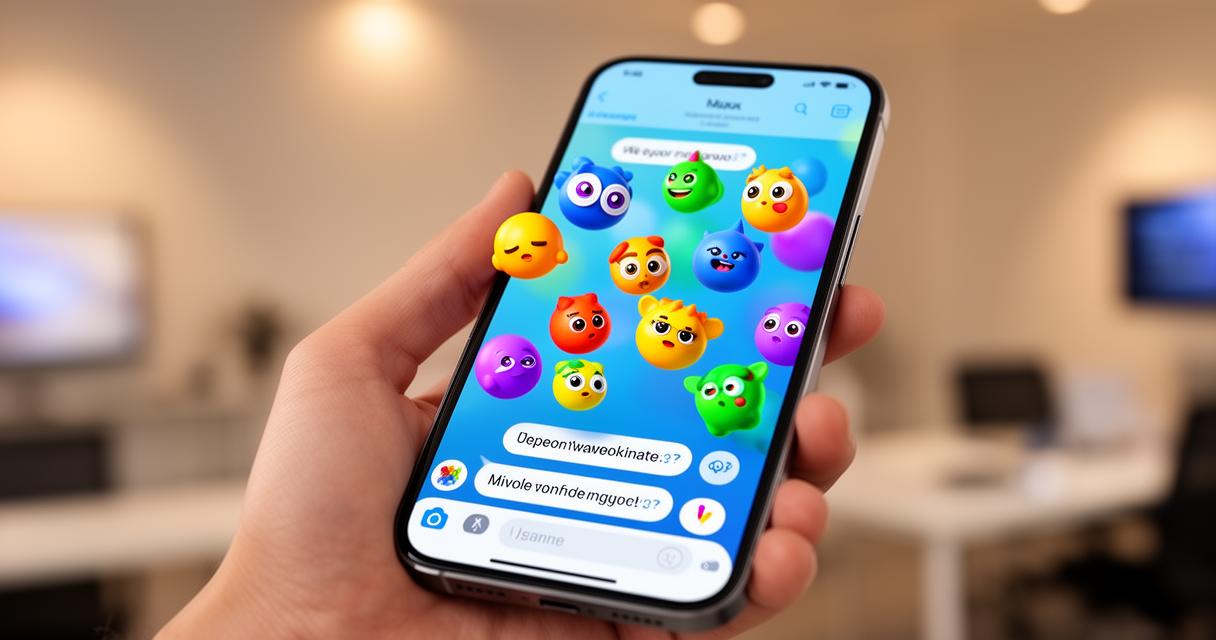
Exploring Emoji Switcher and Keyboard Alternatives from the Google Play Store
According to the tech resource Gadget Hacks, which specialises in smartphone lifehacks, there's a reliable way to get iPhone-style emojis on HTC or Samsung devices without needing to root your phone. Rooting can be risky, potentially voiding warranties or causing instability, so a solution that avoids it is naturally appealing to most users. The method revolves around installing an application called Emoji Fonts for FlipFont 3, a tool that swaps out your device's default font, and with it, the emoji set, to mimic Apple's design.
It's worth noting that this particular FlipFont application has actually been removed from the Google Play Store due to copyright concerns, which means you won't find it through a simple search anymore. However, the APK file remains available for those willing to sideload it. To do this, you'll need to enable the option for unknown sources within your device's security settings, allowing you to install applications from outside the official store. It's a straightforward process, though as always, downloading files from outside the Play Store means being careful to use a trustworthy source.
Comparing Features of Popular Emoji Apps for Android
Not every FlipFont app is created equal, and the version you need depends largely on which version of Android your phone is running. The original Emoji Fonts for FlipFont 3 is designed for HTC devices and Samsung devices running anywhere from Android 4.4 through to Android 5.1.1. If your phone runs a newer operating system, specifically Android Marshmallow or later, you'll want to look for Emoji Fonts for FlipFont 5 instead, which has been updated to work with the more modern software architecture found in Android 6.0 and beyond.
For those with rooted devices, there's an added layer of flexibility. Magisk modules can offer even deeper compatibility, letting users tweak system files directly for a more seamless integration of the Apple emoji set. This isn't necessary for most people, but it's a handy option for anyone already comfortable with rooting and looking for a slightly more robust form of device theming.
Step-by-Step Guide to Enabling iPhone Emojis on Your Samsung Device
Downloading and Installing the Necessary Apps
Getting started involves a bit of manual setup, but nothing too technical. First, you'll need to locate a safe APK file for Emoji Fonts for FlipFont, choosing version 3 or version 5 based on your Android version. Before installing, head into your settings menu and switch on the option that allows APK sideloading from unknown sources. Once that's done, you can install the downloaded file just as you would any other application.
After installation, the app itself doesn't need to be opened repeatedly. Its job is simply to add a new font option to your system, one that includes the Apple-style emoji graphics bundled within it. From here, the real magic happens in your phone's settings rather than within the app.
Adjusting Keyboard Settings to Display iOS-Style Emojis
To finish the process, you'll need to head into your device's display or font settings, which vary slightly depending on whether you're using an HTC or Samsung phone. Look for the option labelled FlipFont or a similar font selection menu, then choose the newly installed emoji font from the list. Once selected, your keyboard will refresh, and you should immediately notice those familiar Apple-style icons appearing whenever you go to send an emoji.
One small quirk to keep in mind is that changing your device's overall theme can sometimes reset this font choice. If that happens, simply return to the same settings menu and reselect the emoji font to restore the look. It's a minor inconvenience, but a small price to pay for finally being able to send that perfectly rounded, unmistakably Apple-style laughing emoji from your Samsung phone.